During my transition from OpenHab2 to HomeAssistant, I found myself looking at my aging DSC PC1550 wired alarm system.
Goal: Replace my functioning, but offline DSC PC1550 alarm. I wanted push notifications via telegram and audible alerting when doors are opened/closed/left open. This needed to fold into my existing smarthome ecosystem (Alexa/HASSIO).
- Issue list (separate posts)
- Compatibility and hardware
- Adding Konnected to HA
- Adding a Digital Alarm Panel to HA
- Setting up alerting/logic chime for HA
COMPATIBILITY & HARDWARE
The property has pre-existing DSC PC1550 wired alarm. I wanted to leverage this with my existing smarthome (Hue, Alexa, HASSIO). Due to the age of the panel an EyezOn unit[1]https://www.eyezon.com/ was not an option. Konnected seemed like they had a great product, but all their units were wireless. Browsing their new products though, they recently added a new POE/wifi unit, Konnected Pro[2]https://konnected.io/collections/pre-order-new-v2-products/products/konnected-alarm-panel-pro-12-zone-kit. Though, pricey at the time ($229 USD).
Out of the box, the Konnected unit offers full compatibility with all of my existing zones and integration[3]https://www.home-assistant.io/integrations/konnected/ with HASSIO. From the reading it seemed as easy as update, wire, ??, PROFIT!

The Konnected unit came with some labels. I numbered each one (not necessary), but let me keep track of all my zones. I ended up running around the house opening/closing windows and doors to see which zones trigger.
There are two primary resources I used to setup, the help portal Getting Started[4]https://help.konnected.io/support/solutions/32000015807 and the HASSIO Konnected integration page[5]https://www.home-assistant.io/integrations/konnected/.
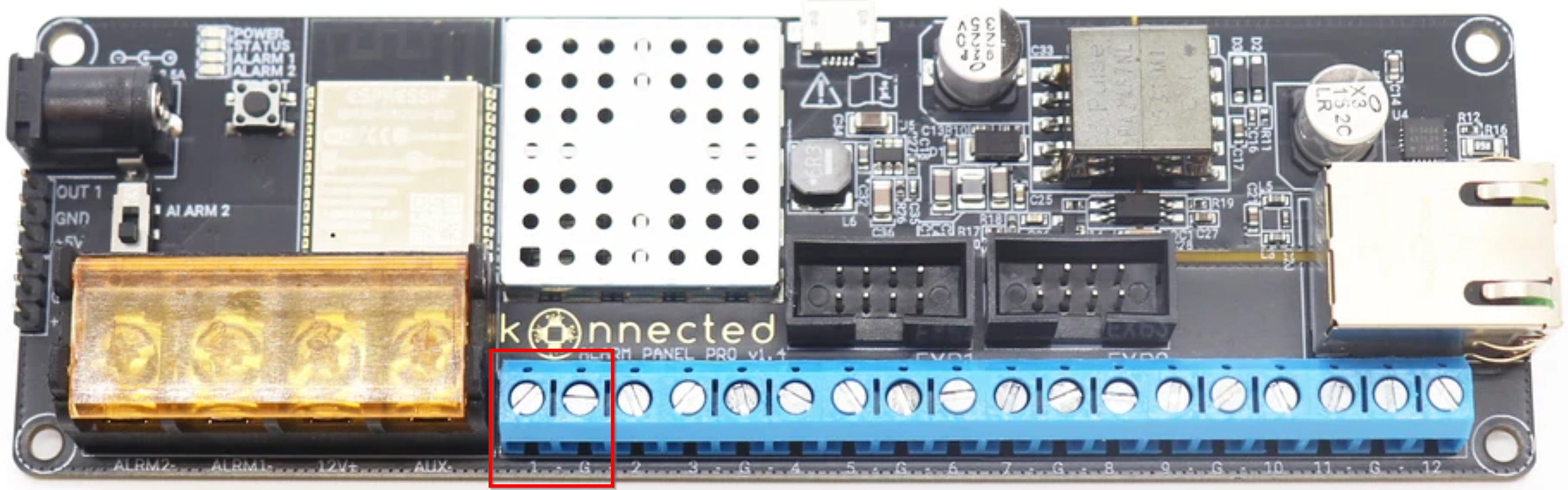
When labeling the wires, I ended up grouping the shared positions. For example, Z1/COM/Z2 on the DSC panel I grouped as #1. This maps directly to the Konnected 1/G/2 positions.
Below you’ll see the Konnected Pro and the mappings highlighted.


One of the biggest pieces of the prep was to factory reset[6]https://help.konnected.io/support/solutions/articles/32000025437-how-do-i-factory-reset-the-device-to-default-settings- the unit and apply the firmware updates to BOTH the ESP32 firmware[7]https://help.konnected.io/support/solutions/articles/32000028976 and the Konnected software/firmware[8]https://help.konnected.io/support/solutions/articles/32000023470-flashing-konnected-firmware-software. Keep in mind, you’ll need a PC (laptop preferrably) with USB-A and PuTTy to flash and debug. Konnected also has a new USB-web flash utility.
Once everything is updated and on the latest version you should be ready to add it to your smart home hub.
ISSUES
Unresponsive after reboot ~5 minutes
While initially setting up the Konnected Pro board[9]https://konnected.io/collections/pre-order-new-v2-products/products/konnected-alarm-panel-pro-12-zone-kit, I was unable to get a stable connection to my HomeAssistant environment. HomeAssistant sees the device, reports just fine, but the device became unresponsive and stopped reporting to HomeAssistant after a few minutes. In order to pull the below log, I had to debug the device by connecting my laptop via USB and using PuTTy[10]https://help.konnected.io/support/solutions/articles/32000023786-device-debugging-with-screen.
|
1 2 3 4 5 6 7 8 9 10 11 12 |
[INFO 1613790198.502901, 167024] /lfs/network.lua:31: Loaded: application [INFO 1613790198.558907, 166816] /lfs/rest_endpoint.lua:123: REST Endpoint: http://homeassistant:8123/api/konnected [ERROR 1613790198.778177, 158604] /lfs/log.lua:92: E (11452) HTTP_CLIENT: Connection failed, sock < 0 [WARN 1613790198.793641, 158572] /lfs/log.lua:92: W (11462) http: esp_http_client_perform returned error 28674 [INFO 1613790198.816977, 163304] /lfs/rest_endpoint.lua:13: HTTP Call: -28674 state -0 zone 1 [ERROR 1613790199.048887, 158524] /lfs/log.lua:92: E (11722) HTTP_CLIENT: Connection failed, sock < 0 [WARN 1613790199.064045, 158492] /lfs/log.lua:92: W (11732) http: esp_http_client_perform returned error 28674 [INFO 1613790199.089214, 163224] /lfs/rest_endpoint.lua:13: HTTP Call: -28674 state -0 retry 1 zone 1 [ERROR 1613790199.319313, 158524] /lfs/log.lua:92: E (11992) HTTP_CLIENT: Connection failed, sock < 0 [WARN 1613790199.334428, 158492] /lfs/log.lua:92: W (12002) http: esp_http_client_perform returned error 28674 [INFO 1613790199.359134, 163224] /lfs/rest_endpoint.lua:13: HTTP Call: -28674 state -0 retry 2 zone 1 Guru Meditation Error: Core 0 panic'ed (LoadProhibited). Exception was unhandled. |
To resolve the above issue, I stumbled upon this post[11]https://community.home-assistant.io/t/konnected-alarm-panel-connect-a-wired-alarm-system-to-ha-new-in-0-70/53620/94. The core of the issue is that HomeAssistant was using DNS/hostname while Konnected Pro needs to use an IP address.
http:
base_url: http://homeassistant.local #hassio hostname
and
konnected:
api_host: http://192.168.0.5 #hassio IP
The api_host could not communicate with homeassistant.local and needed the IP address of the hassio computer. Once I added the api_host and access_token (in the below configurations.yaml) I factory reset the Konnected device. Once it came back online it adopted the settings from HASSIO and has been working since.
Disconnecting after 24-48 hours
While running the Konnected Pro board, I experienced an odd issue where the unit would become unresponsive and go offline after a day or two. After researching I found that the device is going into discovery mode. The solution was to hard-code discovery: false in the configuration.yaml file[12]https://help.konnected.io/support/solutions/articles/32000023968-disabling-device-discovery (below).
HOMEASSISTANT – ADD KONNECTED PANEL
/config/configuration.yaml
You can add these one of two ways, through the Konnected Integration or manually in the configuration.yaml file. For more information on setting up and configuring your Konnected for first use, please reference the Konnected Integration.[13]https://www.home-assistant.io/integrations/konnected/
NoteYou must install file editor to modify your configuration files. Alternatively, you can use your favorite text editor and SSH into your box.
ADDING VIA INTEGRATIONS:
Navigate to your HASSIO homepage and click on Settings > Devices and Services > Add Integration. Search for the Konnected.io integration and select. You’ll be prompted to enter an IP address and port. You can obtain this information from the Konnected app status page http://X.X.X.X:9123/.

If successful, you will be prompted with all of the zones on the Konnected unit. There are two pages on this configuration and when you hit ‘submit’ it will send the config over to the Konnected board and reboot. If you have an alarm of aux devices connected to your alarm, make sure you set those ALARM1/OUT1/OUT2/ALARM2.


ADDING VIA CONFIGURATION.YAML
Navigate to your HASSIO homepage and click on File Editor > Folder Icon to browse > configuration.yaml  Below is a configuration used for my first implementation.
|
1 2 3 4 5 6 7 8 9 10 |
# Configure a default setup of Home Assistant (frontend, api, etc) default_config: konnected: api_host: http://192.168.0.5:8123 #hassio IP address access_token: moo devices: - id: 2d55633db123 host: 192.168.0.5 port: 8123 discovery: False |
Verifying Connectivity
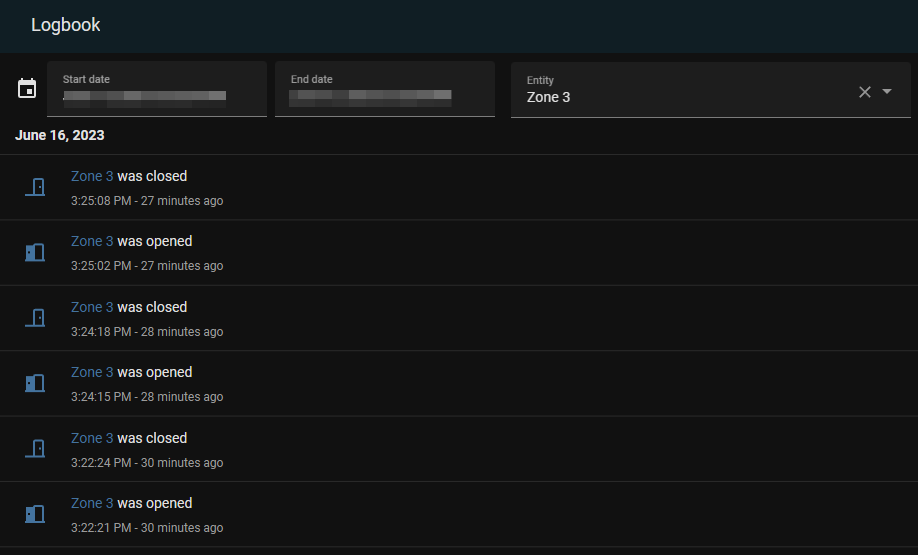
To verify your HASSIO can see your Konnected, navigate over to the Konnected Integration. You should see something that says “6 entities”. Click on those and you should see a status reporting of the sensors as CLOSED or OPEN. Open/close a zone to see if you see the trigger in the logbook. 
Adding an Alarm Panel (Digital)
Now that we have all of the zones added and talking to HASSIO, it’s time to setup our Alarm panel.
Modify your configuration.yaml file and add the Alarm Control Panel[14]https://www.home-assistant.io/integrations/manual/. It took me some time to get this sorted, but it includes everything necessary to arm/disarm your home.
|
1 2 3 4 5 6 7 8 9 10 11 12 13 14 15 16 17 18 19 20 21 22 23 |
<xmp>alarm_control_panel: - platform: manual name: homealarm code: "1234" arming_time: 30 delay_time: 20 trigger_time: 4 disarmed: trigger_time: 0 armed_home: arming_time: 30 delay_time: 20 armed_away: arming_time: 30 delay_time: 20 armed_night: arming_time: 30 delay_time: 20 armed_custom_bypass: arming_time: 30 delay_time: 20</xmp> |
Once you have the above added to your configuration file, save. Make sure there are no syntax errors. Now we can create the Alarm card in the lovelace dashboard.
Create the Alarm Card
Navigate to your dashboard and edit it. When you’re editing your panel card, make sure you define your entity. I had to reboot in order for my entity to show up. If your panel name is like mine “homealarm” your entity should be named “alarm_control_panel.homealarm”. You will see an error message about entity not found if it’s not showing up.
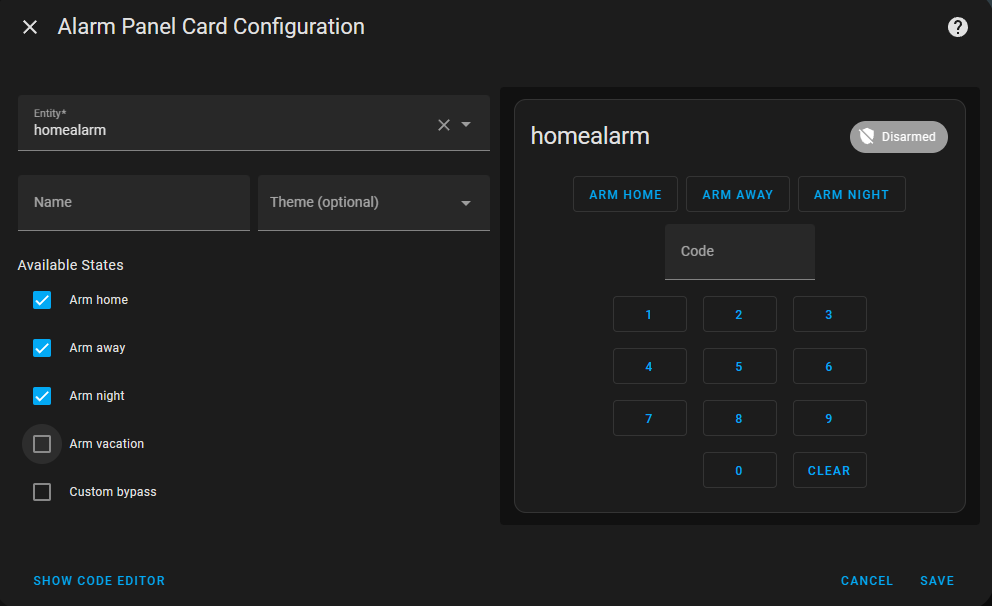
Now that the alarm control card is added to the dashboard, you should be able to try and arm/disarm the panel with your configured code. Give it a try! If it works, we can move on to creating the logic/alerts.


Adding the Logic/Alerting
The first step is getting the doors to ‘chime’ when opened/closed. It was time consuming finding the appropriate audio files for, but I ended up landing on the below audio files for my open/close.
The zones that do not have doors (windows only) I opted out for a text-to-speech solution. This solution requires a premium subscription to NabuCasa. There are workarounds, but for this case we’re using the built-in Service Call functionality.
Navigate to Settings > Automation & Scenes and click on Create Automation.
DOOR OPEN CHIME
Logic:
IF it’s between 8PM-830AM
AND zone 3 is status opened
set volume to 25%. ELSE set volume to 50%
Play 3beep.mp3 on 3 SONOS room speakers (ran in parallel)
0:00
/
0:00
Door Open 3-BEEP


|
1 2 3 4 5 6 7 8 9 10 11 12 13 14 15 16 17 18 19 20 21 22 23 24 25 26 27 28 29 30 31 32 33 34 35 36 37 38 39 40 41 42 43 44 45 46 47 48 49 50 51 52 53 54 55 56 57 58 59 60 61 62 63 64 65 66 67 68 69 70 71 72 73 74 75 76 77 78 79 80 81 82 83 84 85 86 87 88 89 90 91 92 93 94 95 96 97 98 99 100 101 102 103 104 105 106 107 108 109 110 111 112 113 114 115 116 117 118 119 120 121 122 123 124 125 126 127 128 129 130 131 132 133 134 |
<xmp>alias: Zone 3 Sliders Open description: Zone 3 slider doors open alert trigger: - type: opened platform: device device_id: 8e809035345345345435602856fe009d2 entity_id: binary_sensor.zone_3 domain: binary_sensor condition: [] action: - if: - condition: time after: "20:00:00" before: "08:30:00" weekday: - sun - mon - tue - wed - thu - fri - sat then: - service: media_player.volume_set data: volume_level: 0.25 target: device_id: - 242ec2b53454353452655d4717b - c3538d3434435453453459d5397 - parallel: - service: media_player.play_media target: entity_id: media_player.bedroom data: media_content_id: media-source://media_source/local/door_open_3beep.mp3 media_content_type: audio/mpeg metadata: title: door_open_3beep.mp3 thumbnail: null media_class: music children_media_class: null navigateIds: - {} - media_content_type: app media_content_id: media-source://media_source - service: media_player.play_media target: entity_id: media_player.living_room data: media_content_id: media-source://media_source/local/door_open_3beep.mp3 media_content_type: audio/mpeg metadata: title: door_open_3beep.mp3 thumbnail: null media_class: music children_media_class: null navigateIds: - {} - media_content_type: app media_content_id: media-source://media_source - service: media_player.play_media target: entity_id: media_player.great_room data: media_content_id: media-source://media_source/local/door_open_3beep.mp3 media_content_type: audio/mpeg metadata: title: door_open_3beep.mp3 thumbnail: null media_class: music children_media_class: null navigateIds: - {} - media_content_type: app media_content_id: media-source://media_source else: - service: media_player.volume_set data: volume_level: 0.5 target: device_id: - 242ec2b53454353452655d4717b - c3538d3434435453453459d5397 - parallel: - service: media_player.play_media target: entity_id: media_player.bedroom data: media_content_id: media-source://media_source/local/door_open_3beep.mp3 media_content_type: audio/mpeg metadata: title: door_open_3beep.mp3 thumbnail: null media_class: music children_media_class: null navigateIds: - {} - media_content_type: app media_content_id: media-source://media_source - service: media_player.play_media target: entity_id: media_player.living_room data: media_content_id: media-source://media_source/local/door_open_3beep.mp3 media_content_type: audio/mpeg metadata: title: door_open_3beep.mp3 thumbnail: null media_class: music children_media_class: null navigateIds: - {} - media_content_type: app media_content_id: media-source://media_source - service: media_player.play_media target: entity_id: media_player.great_room data: media_content_id: media-source://media_source/local/door_open_3beep.mp3 media_content_type: audio/mpeg metadata: title: door_open_3beep.mp3 thumbnail: null media_class: music children_media_class: null navigateIds: - {} - media_content_type: app media_content_id: media-source://media_source mode: single </xmp> |
DOOR CLOSE CHIME
Logic:
IF it’s between 8PM-830AM
AND zone 3 is status closed
set volume to 25%. ELSE set volume to 50%
Play FastenSeatbelt.wav on 3 SONOS room speakers (ran in parallel)
0:00
/
0:00
Door Closed Fasten Seatbelt


|
1 2 3 4 5 6 7 8 9 10 11 12 13 14 15 16 17 18 19 20 21 22 23 24 25 26 27 28 29 30 31 32 33 34 35 36 37 38 39 40 41 42 43 44 45 46 47 48 49 50 51 52 53 54 55 56 57 58 59 60 61 62 63 64 65 66 67 68 69 70 71 72 73 74 75 76 77 78 79 80 81 82 83 84 85 86 87 88 89 90 91 92 93 94 95 96 97 98 99 100 101 102 103 104 105 106 107 108 109 110 111 112 113 114 115 116 117 118 119 120 121 122 123 124 125 126 127 128 129 130 131 132 133 134 135 136 137 138 139 140 |
<xmp>alias: Zone 3 Sliders Closed description: Zone 3 slider doors closed trigger: - type: not_opened platform: device device_id: 8e8090387a8345345345342856fe009d2 entity_id: binary_sensor.zone_3 domain: binary_sensor condition: [] action: - if: - condition: time after: "20:00:00" before: "08:30:00" weekday: - sun - mon - tue - wed - thu - fri - sat then: - service: media_player.volume_set data: volume_level: 0.25 target: device_id: - 242ec2b34534534545334534555d4717b - c3538d34345345345345345d02e8454597 - parallel: - service: media_player.play_media target: entity_id: media_player.bedroom data: media_content_id: >- media-source://media_source/local/door_closed_airplane_seatbelt.wav media_content_type: audio/x-wav metadata: title: door_closed_airplane_seatbelt.wav thumbnail: null media_class: music children_media_class: null navigateIds: - {} - media_content_type: app media_content_id: media-source://media_source - service: media_player.play_media target: entity_id: media_player.living_room data: media_content_id: >- media-source://media_source/local/door_closed_airplane_seatbelt.wav media_content_type: audio/x-wav metadata: title: door_closed_airplane_seatbelt.wav thumbnail: null media_class: music children_media_class: null navigateIds: - {} - media_content_type: app media_content_id: media-source://media_source - service: media_player.play_media target: entity_id: media_player.great_room data: media_content_id: >- media-source://media_source/local/door_closed_airplane_seatbelt.wav media_content_type: audio/x-wav metadata: title: door_closed_airplane_seatbelt.wav thumbnail: null media_class: music children_media_class: null navigateIds: - {} - media_content_type: app media_content_id: media-source://media_source else: - service: media_player.volume_set data: volume_level: 0.5 target: device_id: - 242ec2b34534534545334534555d4717b - c3538d34345345345345345d02e8454597 - parallel: - service: media_player.play_media target: entity_id: media_player.bedroom data: media_content_id: >- media-source://media_source/local/door_closed_airplane_seatbelt.wav media_content_type: audio/x-wav metadata: title: door_closed_airplane_seatbelt.wav thumbnail: null media_class: music children_media_class: null navigateIds: - {} - media_content_type: app media_content_id: media-source://media_source - service: media_player.play_media target: entity_id: media_player.living_room data: media_content_id: >- media-source://media_source/local/door_closed_airplane_seatbelt.wav media_content_type: audio/x-wav metadata: title: door_closed_airplane_seatbelt.wav thumbnail: null media_class: music children_media_class: null navigateIds: - {} - media_content_type: app media_content_id: media-source://media_source - service: media_player.play_media target: entity_id: media_player.great_room data: media_content_id: >- media-source://media_source/local/door_closed_airplane_seatbelt.wav media_content_type: audio/x-wav metadata: title: door_closed_airplane_seatbelt.wav thumbnail: null media_class: music children_media_class: null navigateIds: - {} - media_content_type: app media_content_id: media-source://media_source mode: single </xmp> |
This is a lovelace dashboard card to show the status of each zone.

|
1 2 3 4 5 6 7 8 9 10 11 12 13 |
<xmp>type: entities entities: - binary_sensor.zone_1 - binary_sensor.zone_2 - binary_sensor.zone_3 - binary_sensor.zone_4 - binary_sensor.zone_5 - binary_sensor.zone_6 title: Alarm Status show_header_toggle: true state_color: true</xmp> |
Setting Armed/Disarmed alerts and logic
Soon to come! Using Telegram for notifications.

ORIGINAL DSC BOARD & KONNECTED PRO

ORIGINAL DSC SCHEMATICS

- Setting up Portainer on Synology NAS via Compose - February 28, 2025
- ERP Logistics Integration - October 22, 2024
- Mobile Device Management Consulting Services - September 22, 2024
Notes & References
Hi Jose, I did not keep my keypad connected. There is a spot to connect one on the Konnected board though.
Hello there I am trying to get a better understanding on the setup. My parents have the dsc 1550 panel I have been looking at connected. Where you able to keep your existing keypads?
Can you give me some insight how you arm/disarm the system. What did you replace keypads with? Also where you able to keep the siren with konnected?
Hi, I never got that far, unfortunately. However the Konnected device seems to support auxiliary devices like speakers. The keypad would need to be digital and integrate with whatever system you’re using to control the zones/arming. You may be better off installing a honeywell panel since it’s not your home system.